Between homework, sports practice, part-time jobs, and trying to get enough sleep, high school is basically a juggling act. A habit tracker is one of the simplest tools for keeping the balls in the air — but most habit-tracking apps either cost money or bury you in features you don’t need. Google Sheets skips all of that.
Table of Contents
If you already have a school or personal Google account, you already have everything required to build a habit tracker: no downloads, no subscriptions, and it works the same on a phone, Chromebook, or laptop. This guide walks through building one from scratch in about ten minutes, with checkboxes, color-coded progress, and an automatic weekly completion total.
Download the Free Weekly Habit Tracker
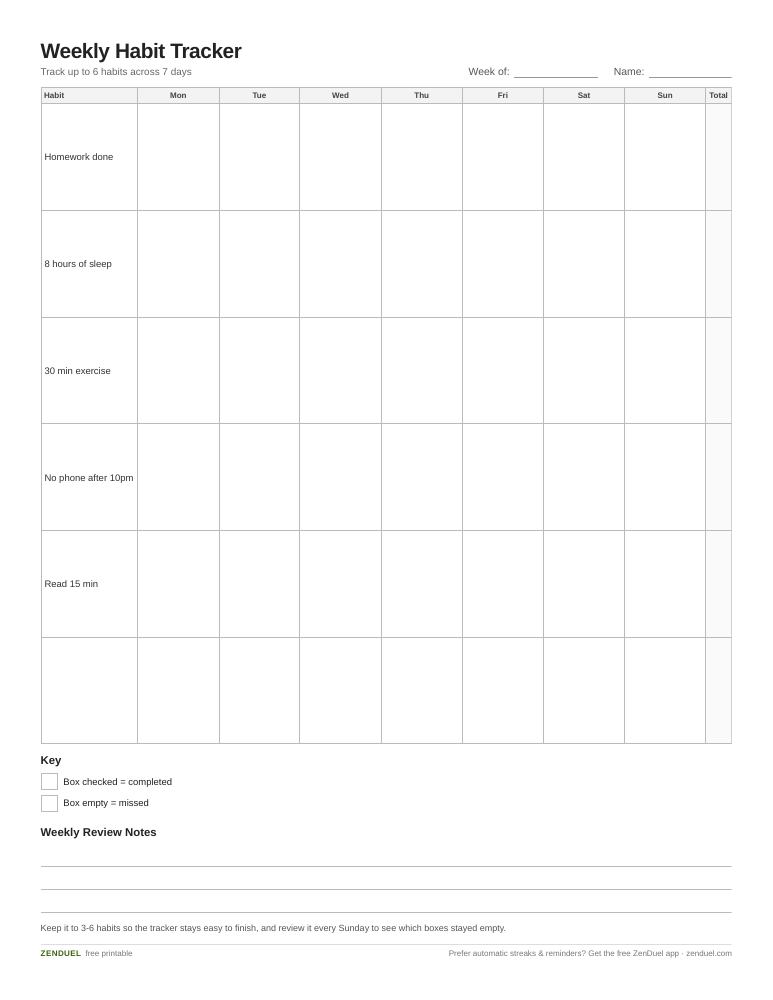
Our own template — free, no sign-up, no email required. A 6-habit, 7-day grid with a weekly total column and space for review notes. US Letter (prints fine on A4). For Google Sheets, upload the .xlsx via File → Import.
Weekly Habit Tracker (Excel / Google Sheets) Weekly Habit Tracker (PDF)
Quick Answer
Open a blank Google Sheet, list your habits down column A and the days of the week or month across the top row, then use Insert > Tick box to add checkboxes in the grid. Add conditional formatting so checked boxes turn green, and use a COUNTIF formula to auto-total how many days you completed each habit that week. The whole setup takes about 10 minutes and costs nothing.
Build Your Tracker in 6 Steps
Start with a blank sheet. Go to sheets.new (or open Google Sheets and click the blank spreadsheet option) and give it a name like ‘Habit Tracker.’
Set up the grid. Put ‘Habits’ in cell A1, then list the days of the week (or dates for a full month) across row 1 starting in column B. Down column A, list the habits you actually want to build — keep it to 3-6 to start, since a giant list is the fastest way to abandon a tracker. Good student examples: ‘Homework done,’ ‘8 hours of sleep,’ ’30 min exercise,’ ‘No phone after 10pm,’ and ‘Read 15 min.’
Add checkboxes. Highlight the grid of cells where habits meet days, then go to Insert and choose Tick box (this is also called ‘Checkbox’ in some menus, and can be added the same way through Data > Data validation by choosing Checkbox as the criteria). Each box is worth TRUE when checked and FALSE when empty, which is what makes the formulas below work.
Color-code your progress. Select the checkbox grid, open Format > Conditional formatting, and add a rule where ‘Custom formula is’ equals =B2=TRUE, then set the fill to light green. Add a second rule for =B2=FALSE with a light red or gray fill so a glance at the sheet shows exactly which days you’re crushing it and which ones need work.
Add a weekly completion total. In a column to the right of your tracker, use =COUNTIF(B2:H2,TRUE) to automatically count how many days that week you checked off that habit. Note that this counts total completed days in the range, not a consecutive streak — if you check Monday, skip Tuesday, and check Wednesday through Friday, COUNTIF still returns 4, even though the streak was broken. It’s a simple weekly score, not a true streak counter.
Duplicate the tab for next week or month. Right-click the sheet tab at the bottom, choose Duplicate, and clear the checkboxes for a fresh start — your habit list, formulas, and formatting carry over automatically.
Customize It for a Student Schedule
Since school weeks and weekends often call for different habits (studying vs. chores, for example), it can help to split the sheet into two sections or two tabs — one for weekdays, one for weekends — instead of forcing one list to cover both.
Install the Google Sheets app on your phone so you can check off habits the moment you finish them, rather than trying to remember everything at the end of the day. Because Sheets syncs automatically, updates made on your phone show up instantly on your laptop and vice versa.
If you want extra accountability, share the sheet (View or Comment access) with a parent, older sibling, or friend who’s also building habits. A shared weekly total tends to be more motivating than a private one nobody else sees.
For habits that need more than a checkbox — like tracking hours of sleep or pages read — swap that row’s checkboxes for plain number entry instead, and use a SUM formula for the weekly total rather than COUNTIF.
Tips and Common Mistakes
Start with too few habits, not too many. Three solid habits you actually complete beats eight you check off for two days and then ignore.
Don’t skip the conditional formatting step — color is what makes the sheet fast to scan on a phone screen between classes, versus a spreadsheet you have to squint at.
Don’t confuse a COUNTIF total with a real streak. COUNTIF just adds up every checked box in a range, so it won’t tell you if your habit was actually consecutive or full of gaps — treat it as a weekly score, not a streak counter.
Review the sheet weekly, not just daily. Spend two minutes on Sunday looking at which habits had the most red boxes and think about why — that’s more useful than the checkboxes alone.
If a habit gets zero checkmarks for two weeks straight, it’s usually a sign the habit itself needs to be smaller or more specific (‘read 10 minutes’ instead of ‘read more’), not that you need more willpower.
Explore more: more guides on building better habits.
Google Sheets habit tracker FAQs
Is a Google Sheets habit tracker really free?
Yes. Google Sheets is free with any Google account, including school-issued Google Workspace for Education accounts, and there are no premium tiers or limits that affect a habit tracker.
Can I use my habit tracker on my phone?
Yes — install the free Google Sheets app (Android or iOS) and sign in with the same Google account. Checkboxes, formulas, and formatting all work in the mobile app and sync instantly with the desktop version.
Does COUNTIF track my actual streak?
No. A formula like =COUNTIF(B2:H2,TRUE) just adds up the total number of checked boxes in a range — it doesn’t check whether those days were consecutive. If a habit was checked Monday, missed Tuesday, then checked again Wednesday through Friday, COUNTIF still reports 4. True consecutive-streak tracking needs a more advanced formula with helper columns that resets the count whenever a day is missed, which is a step up from this basic setup.
Do I have to build the tracker from scratch?
No — a free printable version of this tracker is linked near the top of this guide, or you can build your own in about 10 minutes using the steps above.
Skip the Spreadsheet — Track It in ZenDuel
Habit streaks, mood tracking, and accountability duels in one free app — no template maintenance required. Get ZenDuel.
Want a calmer inbox? Subscribe to the free newsletter.
Photo: ParhamGraphic / CC0, via Wikimedia Commons.