Side hustles die from inconsistency, not bad ideas. The people who actually grow a freelance gig, an Etsy shop, or a small content site into something real are usually the ones who show up daily on the boring stuff — posting, pitching, emailing, publishing — even when it’s not fun. A habit tracker forces that visibility, and you don’t need a paid app to build one.
Table of Contents
This guide walks through setting up a free habit tracker in Google Sheets built specifically around side-hustle work: daily task checkboxes, an automatic completion count, and a simple progress chart, all using built-in Sheets features. No add-ons, no templates to buy.
Download the Free Side Hustle Habit Tracker
Our own template — free, no sign-up, no email required. A 31-day grid for up to six side-hustle habits with a monthly completion total column. US Letter (prints fine on A4). For Google Sheets, upload the .xlsx via File → Import.
Side Hustle Habit Tracker (Excel / Google Sheets) Side Hustle Habit Tracker (PDF)
Quick Answer
Open a blank Google Sheet, list your side-hustle habits (e.g. “pitch a client,” “post content,” “work 30 minutes”) down one column and dates across the top, then use Insert > Checkbox to fill the grid. Add a COUNTIF formula to total how many days each habit was completed for the month — that’s a running total, not a consecutive streak. To actually see streaks, add conditional formatting that colors checked days green, so an unbroken row of green is your visual streak. The whole setup takes about 10 minutes and stays free forever since it’s just a personal Google Sheet.
Step-by-Step: Build the Tracker
1. Create the sheet. Go to sheets.google.com, click the blank spreadsheet, and rename it something like “Side Hustle Habit Tracker.” In cell A1 type “Habit,” then list your side-hustle habits down column A starting at A2 — keep this to 3-6 habits you can realistically sustain, like “send 1 pitch,” “post on social,” “track expenses,” or “spend 30 min on the shop.”
2. Add your date columns. Starting in B1, type the first date of the month (e.g. 9/1). Select B1, grab the small blue fill handle in the corner, and drag it across to fill in the rest of the month’s dates automatically — Sheets will increment the date for each column.
3. Insert checkboxes. Select the empty grid of cells under your dates and next to your habits (e.g. B2:AF6), then go to Insert > Checkbox in the menu. Every selected cell fills with a tappable checkbox. Checked boxes register as TRUE and unchecked ones as FALSE, which is what makes the formulas below work.
4. Freeze your habit column. Go to View > Freeze > 1 column so your habit names stay visible as you scroll right through the month — useful once you’re tracking 30+ days on a phone screen.
5. Add a completion count. In a column just past your dates (e.g. AG2), add a formula like =COUNTIF(B2:AF2,TRUE) to total how many days that habit was checked off for the month. This is a running total, not a consecutive-day streak — it tells you overall consistency, not whether today extends a streak.
Visualize Completions and Spot Streaks
Color-code completed days: select your checkbox grid, go to Format > Conditional formatting, choose “Custom formula is,” and enter a rule like =B2=TRUE with a green fill. Now every checked box highlights instantly, so scanning a row of green cells left to right is the easiest way to see an actual consecutive streak — Sheets doesn’t have a simple built-in function for counting consecutive TRUEs, but your eyes can do it in a second once the row is color-coded.
Add a quick visual with SPARKLINE: in a cell next to a habit row, a formula such as =SPARKLINE(B2:AF2, {“charttype”,”column”}) turns that row’s TRUE/FALSE values into a tiny bar chart inside the cell. It’s a snapshot of the month’s pattern of completions rather than a calculated streak, but it makes gaps and consistent runs easy to spot at a glance.
For a whole-tracker view, select your habit names and their monthly completion totals (from the COUNTIF column), then use Insert > Chart to build a simple column chart. Watching that chart trend upward over a few weeks is often the single most motivating part of the whole setup — it turns “did I work on my side hustle today” into a visible trend line instead of a vague feeling.
Because this all lives in a personal Google Sheet, it’s free with any Google account, syncs automatically across your phone and laptop through the Google Sheets app, and never expires or locks features behind a paywall the way some habit-tracking apps do.
Tips / Common Mistakes
Track too many habits and you’ll abandon the sheet within a week — start with 3-4 side-hustle actions you can realistically do most days, and add more only once those feel automatic.
Make each habit a specific, checkable action rather than a vague goal. “Work on the business” is hard to check off honestly; “send 1 pitch email” or “post 1 listing” is unambiguous.
Duplicate the sheet or tab for each new month (right-click the sheet tab > Duplicate) rather than building a new one from scratch — you’ll keep your formulas and formatting intact.
Bookmark the sheet on your phone’s home screen or use the Google Sheets mobile app so checking off habits takes ten seconds instead of feeling like a chore that requires opening a laptop.
Don’t skip the conditional formatting step — color is what makes a tracker skimmable, and it’s the simplest way to see a real streak since Sheets’ COUNTIF only gives you a total, not consecutive days.
Explore more: more free habit-building tools and guides.
Google Sheets habit tracker FAQs
Is a Google Sheets habit tracker really free?
Yes. If you already have a Google account, Google Sheets is free with no premium tier required for this kind of tracker — checkboxes, conditional formatting, COUNTIF, and SPARKLINE are all standard built-in features.
Can I use this habit tracker on my phone?
Yes, through the free Google Sheets mobile app for iOS and Android. Checkboxes are tappable on mobile, so you can mark off a habit in a few seconds without opening a laptop.
Does COUNTIF track a consecutive streak?
No — a formula like =COUNTIF(B2:AF2,TRUE) counts the total number of checked days in a range, not how many days in a row a habit was completed. Google Sheets doesn’t have a simple built-in function for consecutive streaks (doing it properly requires a more complex array formula). The practical workaround is conditional formatting: color-code checked cells green, and a row of unbroken green is your streak, visible at a glance.
What habits should I track for a side hustle specifically?
Focus on the few actions that actually move the business forward: outreach or pitching, publishing or listing new content/products, dedicated work-time blocks, and basic admin like tracking expenses or replying to messages.
Skip the Spreadsheet — Track It in ZenDuel
Habit streaks, mood tracking, and accountability duels in one free app — no template maintenance required. Get ZenDuel.
Want a calmer inbox? Subscribe to the free newsletter.
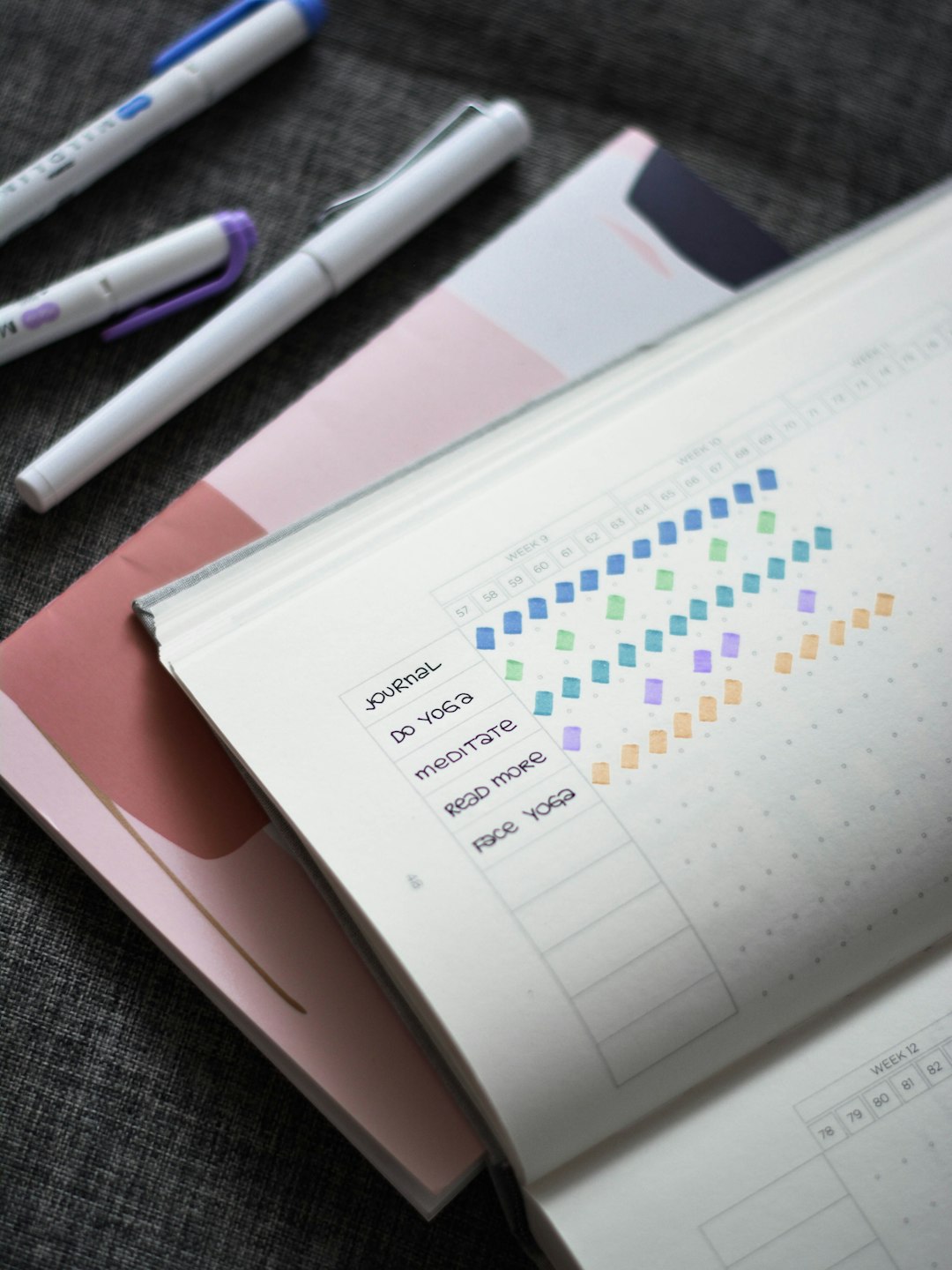
Photo by Prophsee Journals on Unsplash.

1 thought on “Free Google Sheets Habit Tracker for Side Hustles”
Comments are closed.