A good training log does more than record miles — it shows you whether your training is actually working, flags overuse before it turns into an injury, and keeps habits like stretching or hydration from quietly slipping. Excel (or Google Sheets, since the layout works in both) is one of the simplest ways to build one, because you control exactly what you track and can add formulas that do the math for you.
Table of Contents
Below is a layout you can build in minutes, plus the free spreadsheet attached to this post already set up with the columns, weekly totals, and conditional formatting described here — open it and start logging today.
Download the Free Running Training Log & Habit Tracker
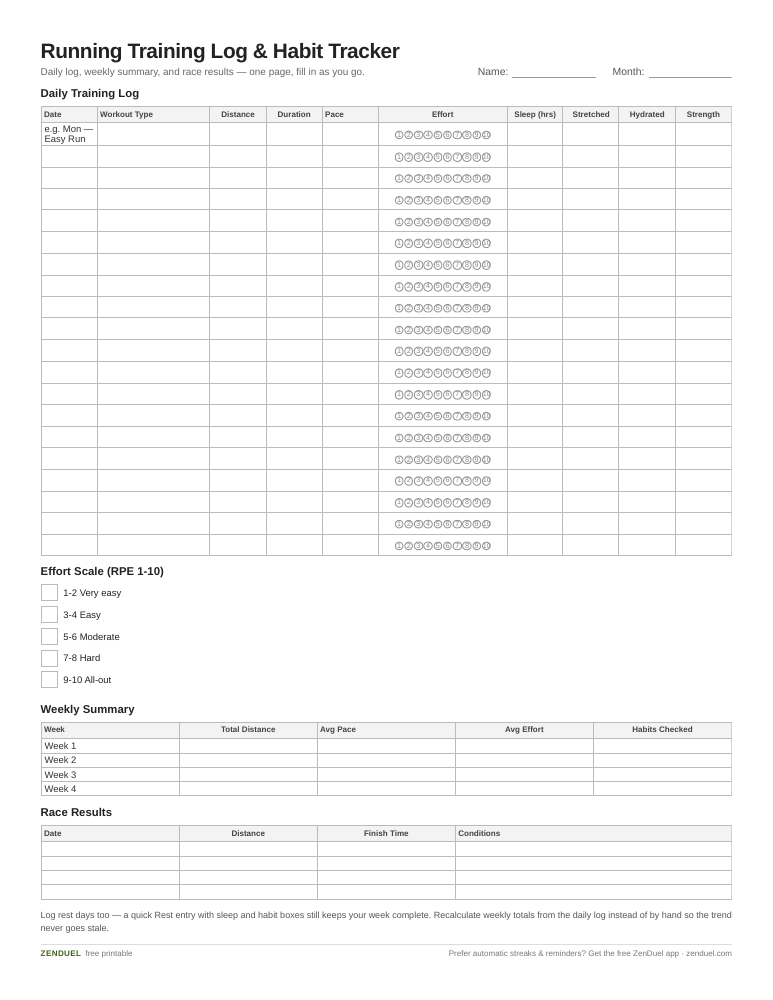
Our own template — free, no sign-up, no email required. A 20-row daily training log with habit checkboxes, a 4-week summary table, and a race results log — all on one page. US Letter (prints fine on A4). For Google Sheets, upload the .xlsx via File → Import.
Running Training Log & Habit Tracker (Excel / Google Sheets) Running Training Log & Habit Tracker (PDF)
Quick Answer
Set up one row per run with columns for date, workout type, distance, duration, pace, effort, and a few habit checkboxes (sleep, stretching, strength work). Add a weekly summary row that totals mileage and averages effort, then use conditional formatting to color-code effort and a sparkline to show your weekly mileage trend at a glance. The template attached to this post is already built this way — just fill in your rows.
How to Set Up the Spreadsheet
Start with a ‘Daily Log’ sheet and give it these columns: Date, Workout Type (Easy Run, Tempo, Intervals, Long Run, Race, Cross-Train, Rest), Distance, Duration, Average Pace, Perceived Effort (a 1-10 scale), Resting Heart Rate (optional), Sleep Hours, and Notes. Add three more columns as simple yes/no habit checkboxes: Stretched/Mobility, Hydrated, and Strength Work — these are what turn a plain log into a habit tracker.
Format the Date, Workout Type, and Distance columns as an Excel Table (Insert > Table) so new rows automatically inherit formulas and formatting as you add them. For Workout Type, add a dropdown with Data Validation (Data > Data Validation > List) so every entry stays consistent, which matters later when you summarize by workout type.
Add a ‘Weekly Summary’ sheet below or beside it with one row per week: total distance (=SUM), average pace, average effort (=AVERAGE), and a count of how many habit boxes were checked that week (=COUNTIF). Insert a Line sparkline (Insert > Sparklines > Line) next to your weekly totals so you can see your mileage trend across weeks without building a full chart.
Use conditional formatting (Home > Conditional Formatting) on the Perceived Effort column with a 3-color scale, so easy workouts read green and hard efforts read red at a glance. Apply a simple highlight rule to the habit checkbox columns too, so an empty box (a missed habit) stands out visually in the row.
What to Track Beyond Distance
Runners who keep a long-term log consistently point to the same payoffs: you can see whether your training is actually improving your fitness over time, spot the patterns that precede nagging injuries, and catch mileage jumps that are happening too fast before they cause a setback. None of that works if the log only records distance.
That’s why the effort, sleep, and resting heart rate columns matter as much as the mileage — a rising resting heart rate, worse sleep, or a run that feels unusually hard (a high effort score) for a pace and distance that normally feel easy is often the earliest warning sign of overtraining, and you’ll only notice the pattern if it’s sitting next to your mileage in the same sheet.
If you race, add a separate small section (or a second tab) for race results — date, distance, finish time, and conditions — so you have a quick reference when you’re setting goals for your next training cycle.
Tips / Common Mistakes
Don’t let the log get so detailed that updating it becomes a chore — if filling it in takes more than a minute or two after a run, you’ll stop doing it. Six to ten columns is usually the sweet spot.
Log rest days too, not just runs. A ‘Rest’ entry with sleep and habit checkboxes still keeps your habit-tracking streak intact and gives you a true week-over-week picture.
Recalculate your weekly totals with formulas, not by hand — manual totals are the most common source of a training log quietly going stale, because one skipped update breaks the trend you were tracking it for.
Keep workout-type entries consistent (use the dropdown) so you can later filter or pivot by workout type to see, for example, how much of your mileage is easy versus hard — a useful check for runners prone to running every session too fast.
Explore more: more habit-tracking templates and guides.
Excel Training Log and Habit Tracker for Runners FAQs
Do I need Excel, or will this work in Google Sheets?
The layout works in either — tables, data validation dropdowns, conditional formatting, and sparklines all exist in both Excel and Google Sheets, though the menu paths differ slightly. The attached file opens fine in both.
What’s the best effort scale to use?
A 1-10 Rate of Perceived Effort (RPE) scale is the simplest and most common choice among runners, where 1-2 is a very easy jog and 9-10 is an all-out race effort.
How often should I update the weekly summary?
Set it up once with formulas (SUM, AVERAGE, COUNTIF) referencing your daily log table, and it updates automatically every time you add a new row — no manual recalculating needed.
Should I track habits separately from my runs?
Keeping habit checkboxes (sleep, stretching, strength work) in the same row as each day’s run makes it much easier to spot correlations, like noticing your hardest-feeling efforts consistently follow nights of poor sleep.
Skip the Spreadsheet — Track It in ZenDuel
Habit streaks, mood tracking, and accountability duels in one free app — no template maintenance required. Get ZenDuel.
Want a calmer inbox? Subscribe to the free newsletter.