Job hunting falls apart less often because of a bad resume and more often because people stop doing the small daily things — sending applications, following up, practicing interview answers — once the initial motivation fades. A habit tracker fixes that by turning job search activity into something you check off every day instead of something you vaguely intend to do.
Table of Contents
This guide walks through building a Google Sheets habit tracker specifically for job seekers: which daily habits to track, how to set up checkboxes and conditional formatting so progress is visible at a glance, and how to add a streak counter that keeps you honest. You’ll also get the exact layout (columns, rows, and sizing) used in the free template included with this post, so you can start tracking today.
Download the Free Job Search Habit Tracker
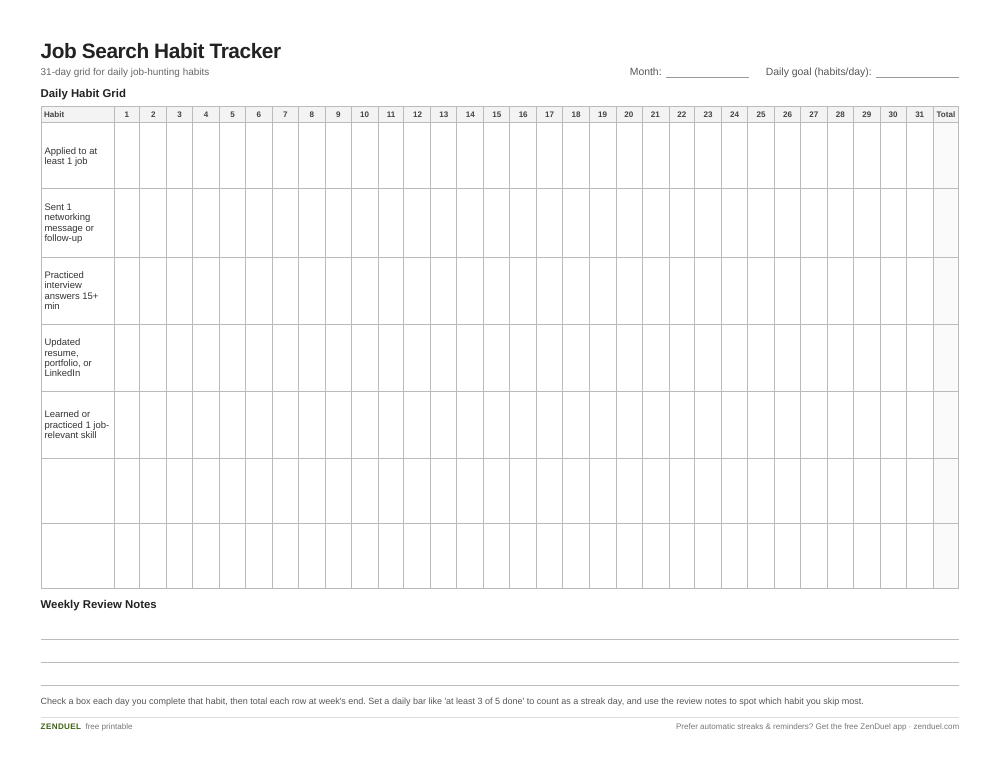
Our own template — free, no sign-up, no email required. A 31-day grid with five starter job-search habits as rows, two blank rows for your own, and row/column totals. US Letter (prints fine on A4). For Google Sheets, upload the .xlsx via File → Import.
Job Search Habit Tracker (Excel / Google Sheets) Job Search Habit Tracker (PDF)
Quick Answer
Open a new Google Sheet, list your target job-search habits as column headers (e.g., applied to jobs, sent a networking message, practiced interview questions), list dates down the left column, and use Insert > Checkbox to add checkboxes to the grid. Add a COUNTIF formula in a side column to total daily completions and a second one to track your current streak, then use conditional formatting so rows light up green on good days.
Step-by-Step: Setting Up the Tracker
Start with the layout. Put dates down column A (one row per day, 30 or 31 rows for a month works well), and put 5-7 job-search habits across the header row in columns B through H. Keep each habit narrow and binary so it’s easy to answer yes/no — ‘Applied to at least 1 job,’ ‘Sent 1 networking message or follow-up,’ ‘Practiced interview answers for 15+ minutes,’ ‘Updated resume, portfolio, or LinkedIn,’ and ‘Learned or practiced one job-relevant skill’ are good starting habits. Avoid vague entries like ‘job search work’ since they’re hard to check off honestly.
Select the cell range under your habit headers and go to Insert > Checkbox. Google Sheets will drop an interactive checkbox into every selected cell, and each checked box stores a value of TRUE (unchecked stores FALSE) behind the scenes, which is what makes the formulas below work.
In a column to the right of your last habit (say column I), add a daily total with a formula like =COUNTIF(B2:H2,TRUE) so you can see how many of the day’s habits you completed at a glance. Below the whole grid, add a per-habit column total using the same COUNTIF pattern down each column, so you can see which habit you’re skipping most often over the month.
For a streak counter, add one more column that checks whether the day’s total met your minimum bar (for example, at least 3 of 5 habits) and then counts consecutive TRUE days. A simple version: mark a cell TRUE/FALSE with =I2>=3, then track the running streak length in the next column by checking whether the row above was also TRUE and adding 1, or resetting to 0 if it wasn’t.
Making Progress Visible with Conditional Formatting
Checkboxes alone are useful, but conditional formatting is what makes the sheet motivating to open every day. Select your daily-total column, go to Format > Conditional formatting, choose ‘Custom formula is,’ and enter something like =$I2>=4 to highlight strong days in green. Add a second rule for middling days (=$I2>=2) in yellow, so a glance down the column shows your month’s consistency as a simple color pattern rather than a wall of numbers.
You can apply the same custom-formula approach directly to the checkbox cells themselves — a rule like =$B2=TRUE formats a checked cell in a different color than an unchecked one — which is handy if you want the habit grid itself, not just the totals column, to turn green as you complete things.
If you want a weekly view instead of only daily, add a second tab (or a summary block below the grid) that sums each habit’s checkboxes for the 7 rows in that week using SUM or COUNTIF over that range. This is useful for a weekly check-in where you look back and decide whether to adjust a habit — for example, dropping ‘networking message’ from daily to every-other-day if it’s consistently the one you skip.
Tips and Common Mistakes
Track behaviors you control, not outcomes. ‘Sent 3 applications’ is a habit; ‘got a callback’ isn’t — it depends on employers, not your consistency, and tracking it will make the sheet feel discouraging instead of motivating.
Keep the habit list short. Five to seven habits is plenty; a 12-column grid becomes tedious to fill in daily and most job seekers abandon it within a week. You can always add a habit later if an early one becomes automatic.
Set a realistic daily bar for the streak counter — requiring all habits checked every single day is the most common reason these trackers get abandoned. A threshold like ‘at least 3 of 5’ keeps the streak alive through normal busy or low-energy days without making the tracker meaningless.
Review the per-habit column totals weekly, not just the daily streak. A long streak can hide the fact that you’re always skipping the same one or two habits (commonly networking or skill-practice), which is exactly the pattern worth catching early in a job search.
Explore more: more habit-building guides.
Google Sheets FAQs
What habits should a job seeker track daily?
Good starting habits are: applying to at least one job, sending one networking message or follow-up, practicing interview answers, updating a resume/portfolio/LinkedIn, and learning or practicing one job-relevant skill. Keep each one binary (done or not done) so it’s easy to check off honestly.
How do I add checkboxes in Google Sheets?
Select the cell or range where you want checkboxes, then go to Insert > Checkbox in the menu. Each checked box is stored as TRUE and each unchecked box as FALSE, which lets you build COUNTIF and conditional formatting rules on top of them.
How do I make a streak counter in Google Sheets?
First create a column that marks each day TRUE or FALSE based on whether you hit your daily habit threshold (e.g., =$I2>=3). Then add a running-streak column that adds 1 to the row above if both days are TRUE, and resets to 0 when a day is FALSE.
Do I need a separate sheet for each week or month?
Not necessarily. One tab with 30-31 rows covers a full month, and you can add a second tab or summary block for weekly totals. Starting a fresh tab each month makes it easy to see trends over a full job search without one giant, slow-loading sheet.
Skip the Spreadsheet — Track It in ZenDuel
Habit streaks, mood tracking, and accountability duels in one free app — no template maintenance required. Get ZenDuel.
Want a calmer inbox? Subscribe to the free newsletter.
Photo: ParhamGraphic / CC0, via Wikimedia Commons.