Taking a daily walk, remembering medication, drinking enough water, calling a friend: small habits add up, and a simple checklist makes them easier to keep. A spreadsheet is a good home for that checklist because free templates are easy to find, the layout is simple, and you control every detail down to the font size.
Table of Contents
This guide rounds up the best free Excel habit tracker templates available right now, walks through building your own from a blank workbook in about ten minutes, and adds the comfort tweaks — bigger text, higher contrast, fewer habits — that make any tracker easier to use for older eyes and hands.
Download the Free ZenDuel Excel Habit Tracker
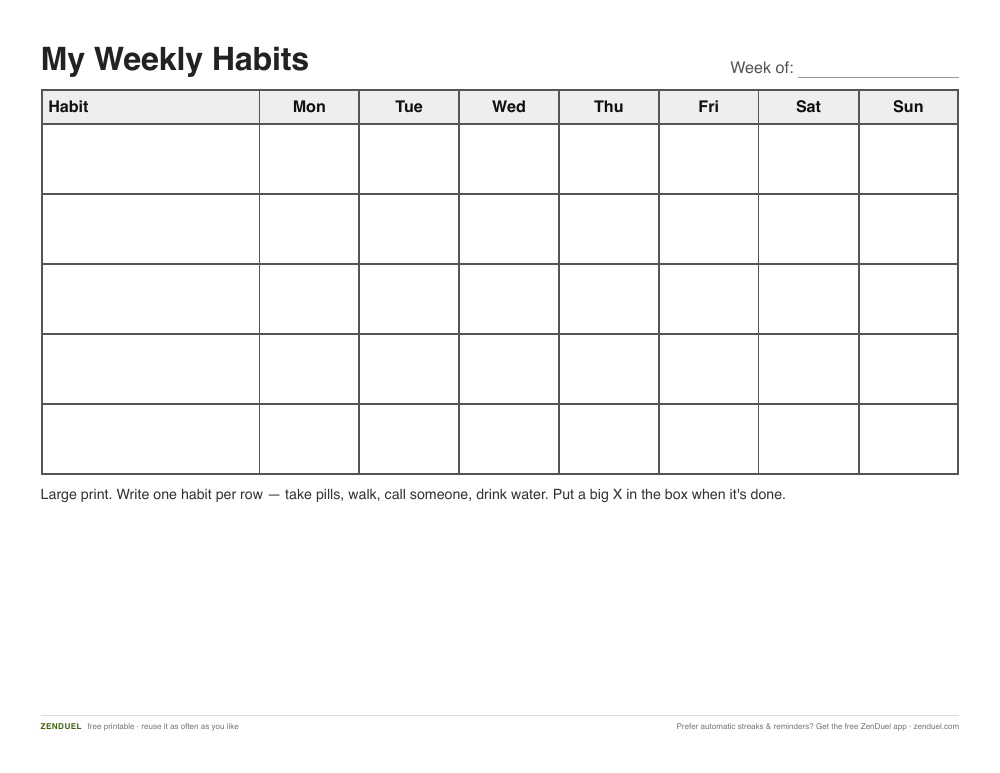
Our own printables — free, no sign-up, no email required. A ready-made Excel tracker with automatic totals, plus a large-print PDF (big text, thick lines) if a paper copy is easier to use.
Quick Answer
The fastest route to a free Excel habit tracker is the one attached to this page: download the ZenDuel Excel Habit Tracker below, which already has the habit rows, day columns, checkboxes, and COUNTIF totals built in, with no sign-up required. If you’d rather shop around first, free templates from sites like Vertex42, Microsoft Create, and 24Billions follow the same basic pattern. Building your own from scratch takes about ten minutes: list habits in column A, days in row 3, checkboxes in the grid, and one COUNTIF formula per habit for a running total.
Download the Free ZenDuel Excel Habit Tracker
Our own printable is free, requires no sign-up, and asks for no email address. The .xlsx file opens in Excel, Excel for the web, or Google Sheets, and already includes everything described in this guide: a habit column down the left with room for up to eight habits, a day-of-month grid across the top (1 through 31, or swap in Mon through Sun for a weekly version), checkboxes in every cell, conditional formatting that turns a completed day green, and a COUNTIF total at the end of each row so your monthly count is visible at a glance.
A large-print PDF version uses the same layout with thicker grid lines and bigger text, for anyone who finds a screen or a small printed grid hard to read. Grab either format: the Excel Habit Tracker (.xlsx) or the Large-Print Tracker (PDF).
What You Need to Open a Free Excel Habit Tracker
Desktop Excel is licensed either through a Microsoft 365 subscription or a one-time purchase of a version such as Office 2021 or 2024. If you already have one of those, you have everything you need. If you don’t, Excel for the web runs free in a browser with any Microsoft account, no purchase required, and it opens .xlsx habit trackers the same way the desktop app does, just without macros — which a simple tracker doesn’t need anyway.
Mac users can open the same .xlsx files in Excel for Mac, and most free templates also import cleanly into Google Sheets. Whichever program you use, test a new template with a few sample entries before committing to it, since checkboxes and conditional formatting can look slightly different between programs.
Other Free Excel Habit Tracker Templates Worth Comparing
Beyond the ZenDuel tracker, a handful of sites publish genuinely free Excel habit tracker templates worth comparing. Vertex42 and Microsoft’s own template gallery at create.microsoft.com both offer no-cost, ad-free downloads built for general habit and wellness tracking. New Orchards, Excel Guru, xlstemplate.com, and 24Billions offer simpler single-sheet versions built specifically for a habit grid. Some ask for an email address before the download link appears, and some don’t, so check each site’s terms before handing over any information.
Whichever template you pick, look for the same traits: a short habit list of five or six items, one clear grid with a row per habit and a column per day, and no macros. A file that asks you to ‘enable content’ or run a macro just to show checkboxes is more complicated than a habit tracker needs to be, and it’s worth skipping in favor of a plainer option.
Build Your Own Free Habit Tracker in Excel in 10 Minutes
Open a blank workbook and build the frame first. In cell A1, type a title such as “My Daily Habits.” In column A starting at row 3, list one habit per row — “Morning walk,” “Take vitamins,” “Drink water,” “Call family or a friend” is a solid starting set. Across row 3 starting in column B, type the numbers 1 to 31 for a full month, or swap in Mon through Sun for a weekly tracker, which is easier to read on a phone or small screen.
Select the empty grid where habits and days meet. In Excel for Microsoft 365 on Windows or Mac, go to Insert, choose Checkbox in the Controls group, and a checkbox drops into every selected cell, each one holding a TRUE or FALSE value behind the scenes. One-time-purchase versions such as Excel 2019, 2021, or 2024, and Excel for the web, don’t have that button; if yours doesn’t, type an X or a 1 in a cell instead when you finish a habit.
With the grid still selected, go to Home, then Conditional Formatting, then Highlight Cells Rules, then Equal To, and type TRUE with a green fill, or type X if you’re using letters instead of checkboxes. Every completed day turns green, so gaps in the month are easy to spot. For a running total, type =COUNTIF(B4:AF4,TRUE) beside the first habit — or =COUNTIF(B4:AF4,”X”) for an X-based tracker — adjust the range to match your grid, and copy the formula down the column. That one formula is the only math a habit tracker needs.
Daily, Weekly, or Monthly: Picking the Right Layout
A daily grid with 31 columns works well for something you’re watching closely for a month, like a new medication schedule. A weekly grid with 7 columns is easier to read at a glance and better suited to a phone screen or a tracker you check once a day. If you want a longer view, add a second sheet with one column per month and a simple total or rating per habit — it turns the daily grid into a year-at-a-glance summary without adding any new formulas, since it just references the monthly totals you already have.
Make Any Tracker Easier to Read
Comfort matters more than looks. Select all cells with Ctrl+A, then raise the font size on the Home tab to something readable without leaning in. Widen the habit column so no name is cut off, and increase row height so checkboxes are easy to click. Excel’s zoom slider at the bottom right of the window enlarges the whole sheet at once.
Use strong contrast: dark text on a white background, and a bold green for completed days rather than a pale tint. Bold the header row and add borders to the grid so rows and columns stand out clearly, then save the file somewhere easy to find again, like the Desktop or Documents folder.
Tips and Common Mistakes
The most common mistake is tracking too many habits at once — five or six is the sweet spot; a grid with fifteen rows turns into a chore instead of a habit. The second is downloading a template with locked cells or hidden macros, which adds friction right when the goal is to remove it. The third is skipping a backup: save a copy of the file to OneDrive, Google Drive, or a flash drive so a laptop problem doesn’t wipe out weeks of entries.
If checkboxes don’t appear after following the Insert > Checkbox steps, the Excel version in use likely doesn’t support them, since that feature is limited to Excel for Microsoft 365 on Windows and Mac. Switch to typing an X instead, which works in every version of Excel and still pairs fine with conditional formatting and COUNTIF.
Skip the Spreadsheet — Track It in ZenDuel
If a spreadsheet ever feels like one more thing to maintain, ZenDuel tracks the same habits without the setup: no checkboxes to insert, no formulas to copy, just a daily list you tap through. It’s worth trying once the Excel version is running and you know which habits actually stick.
Photos

Frequently Asked Questions
Is there a truly free Excel habit tracker template?
Yes. The ZenDuel Excel Habit Tracker on this page is free to download with no sign-up, no email, and no trial period, and it already has checkboxes, conditional formatting, and COUNTIF totals set up. Vertex42, Microsoft Create’s template gallery, and 24Billions are other free options worth comparing.
Is Excel itself free to use for a habit tracker?
The templates are free, but the Excel desktop app isn’t — it comes with a Microsoft 365 subscription or a one-time Office purchase. If you don’t have either, Excel for the web is free with any Microsoft account and opens the same .xlsx habit tracker files.
Do I need the newest version of Excel to use a habit tracker?
No. Any version that opens .xlsx files handles the grid, conditional formatting, and COUNTIF formula this guide uses. The one feature tied to newer versions is the Insert > Checkbox button, which exists only in Excel for Microsoft 365 on Windows and Mac — older versions, and Excel for the web, can use a typed X instead.
Does Excel have a built-in habit tracker template?
Not inside the desktop app itself, but Microsoft’s own template gallery at create.microsoft.com offers free health and habit tracker templates that open directly in Excel, alongside the third-party free templates covered in this guide.
How many habits should I track at once?
Five or six is the practical limit for a tracker you’ll actually keep up with. More than that and the grid turns into upkeep instead of a quick daily check-in.
Is a printed tracker better than an Excel one?
Neither is universally better — a printed tracker needs no login or software, while an Excel version auto-totals your progress and is easy to edit. The free ZenDuel download includes both an .xlsx file and a large-print PDF, so it isn’t an either-or choice.
Skip the Spreadsheet — Track It in ZenDuel
Habit streaks, mood tracking, and accountability duels in one free app — no template maintenance required. Get ZenDuel.
Want a calmer inbox? Subscribe to the free newsletter.