75 Hard only has five rules, but keeping all of them straight for 75 straight days is where most people fall apart. A sticky note works for about a week; after that you need something that shows your streak at a glance and doesn’t let a missed workout hide in the noise.
Table of Contents
This guide walks through building your own 75 Hard tracker in Google Sheets from scratch, no template download or add-on required. You’ll end up with a daily checklist, color-coded conditional formatting, and formulas that automatically calculate your streak and completion rate.
Download the Free 75 Hard Progress Tracker
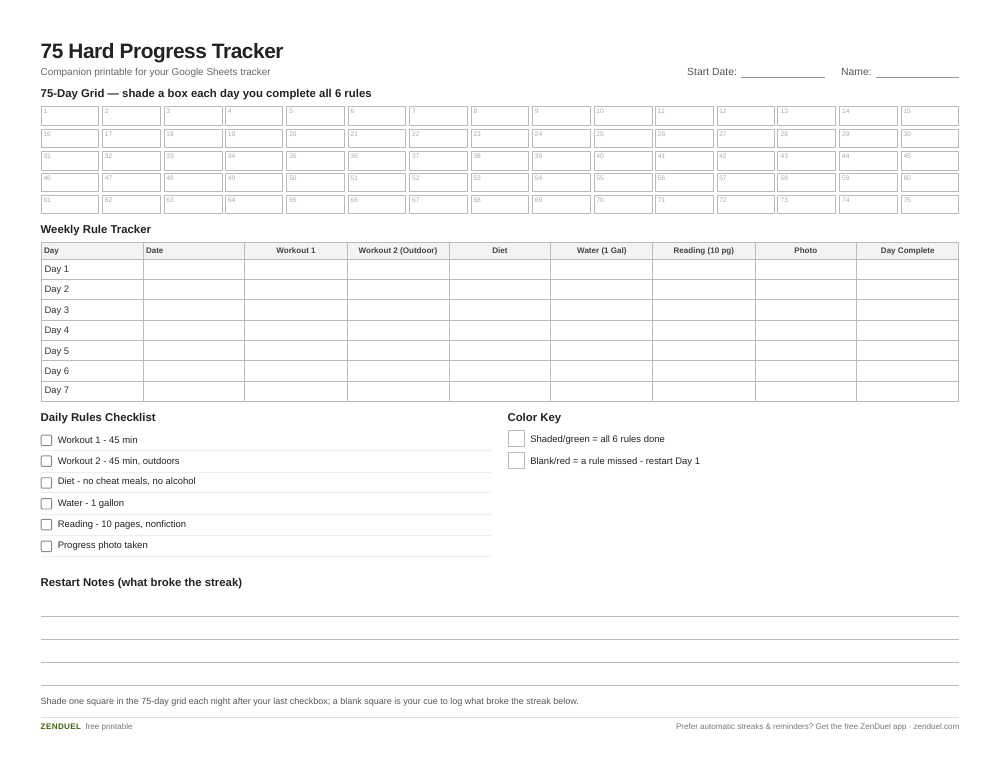
Our own template — free, no sign-up, no email required. A 75-day completion grid, a weekly 6-rule tracking table, and a daily rules checklist to pair with your spreadsheet. US Letter (prints fine on A4). For Google Sheets, upload the .xlsx via File → Import.
75 Hard Progress Tracker (Excel / Google Sheets) 75 Hard Progress Tracker (PDF)
Quick Answer
Open a blank Google Sheet, list days 1-75 down the left column, and add one column for each of the 5 rules (two workouts, water, diet, reading, progress photo). Insert checkboxes (Insert > Checkbox) in the tracking cells, then use conditional formatting so a day turns green only when every checkbox is checked, and a COUNTIF formula to total your completed days.
Set Up the Columns for the 5 Rules
Before touching formulas, map out what you’re actually tracking. The program’s five rules are: follow a diet with no cheat meals and no alcohol, complete two 45-minute workouts a day with one outdoors, drink a gallon of water daily, read 10 pages of a nonfiction or self-improvement book (audiobooks don’t count), and take a daily progress photo. That gives you six columns to build, since the two workouts should be tracked separately.
In row 1, create headers: Day, Date, Workout 1, Workout 2 (Outdoor), Diet, Water (1 Gallon), Reading (10 Pages), Progress Photo, and a Day Complete column at the end. In column A, label each row ‘Day 1’ through ‘Day 75’ as plain text so it reads clearly. Don’t build the Date column off that text label directly, since a formula like A2+1 will error on text. Instead, base the date on the row number: in B2 use =DATE(2026,9,1)+ROW()-2 (swap in your real start date), which treats row 2 as Day 1 and counts forward automatically as you drag it down, with no dependency on what’s typed in column A.
Add Checkboxes and Automate the Streak
Select the six tracking columns for all 75 rows, then go to Insert > Checkbox. This turns every cell into a clickable TRUE/FALSE box instead of forcing you to type an X each day.
For the Day Complete column, use a formula that only marks the day done if every rule was hit: =IF(COUNTIF(C2:H2,TRUE)=6,TRUE,FALSE). This is the key formula in the whole sheet, since 75 Hard is all-or-nothing per day, and it stops you from accidentally counting a day where you skipped the water or the second workout.
To see your running streak, add a summary cell with =COUNTIF(I2:I76,TRUE) to total completed days, and a percentage cell with =COUNTIF(I2:I76,TRUE)/75 formatted as a percent. If you want a true consecutive-streak counter rather than just a total, that’s a more advanced array formula, but for most people the running total and a visual green/red grid does the job of catching a broken streak immediately.
Color-Code It With Conditional Formatting
Select the six checkbox columns, open Format > Conditional formatting, and add a rule with ‘Custom formula is’ set to a formula like =C2=TRUE, then set the fill to light green. Add a second rule for =C2=FALSE with light red so unchecked days stand out just as clearly as completed ones.
Do the same for the Day Complete column, but make the green bolder or add a second color scale so a fully green row (all 6 boxes checked) is unmistakable from across the room. Some people also add a color scale (Format > Conditional formatting > Color scale) over a running-total column so the whole 75-day grid becomes a visual heat map of consistency.
Finally, freeze the header row (View > Freeze > 1 row) so your column labels stay visible as you scroll from Day 1 to Day 75, and consider freezing column A too so the day number stays in view.
Tips and Common Mistakes
Don’t combine the two workouts into one column. The rule requires two separate 45-minute sessions with one outdoors, and if you only have one checkbox you’ll lose the ability to catch a day where you did one workout but skipped the second.
Rebuild the sheet formulas before you start, not on Day 1 while you’re also trying to remember your diet rules. Test the checkboxes and the Day Complete formula on a few dummy rows first so you’re not debugging a formula on the day it actually matters.
Add a Notes column next to Day Complete. On the day you have to restart (which is the whole point of 75 Hard’s all-or-nothing rule), a note on what broke the streak is more useful later than an empty red row.
If you’re on mobile most of the day, install the Google Sheets app so checkboxes are tappable on your phone; trying to type TRUE/FALSE manually from a phone browser is what usually kills a tracker by week two.
Explore more: more habit-building guides.
75 Hard Google Sheets Tracker FAQs
Do I need a template, or can I build this from scratch?
A free printable companion tracker is linked near the top of this guide if you’d rather not build the sheet from scratch. Everything here uses built-in Google Sheets features (checkboxes, conditional formatting, and COUNTIF), so you can build the whole tracker in under 15 minutes and customize it exactly to how you personally track your diet or workouts.
What happens in the sheet if I miss a rule on a given day?
If any of the six checkboxes for that day is left unchecked, the Day Complete formula returns FALSE and the conditional formatting turns that row red instead of green, which mirrors the program’s actual rule that missing any single task means restarting the full 75 days from Day 1.
Can I track more than the 5 official rules?
Yes. Many people add extra columns for things like sleep, weight, or mood, since Google Sheets doesn’t limit you to the core 5 rules. Just keep those extra columns separate from the Day Complete formula so they don’t affect whether a day counts as officially finished.
Skip the Spreadsheet — Track It in ZenDuel
Habit streaks, mood tracking, and accountability duels in one free app — no template maintenance required. Get ZenDuel.
Want a calmer inbox? Subscribe to the free newsletter.
Photo by Prophsee Journals on Unsplash.