Retirement opens up a lot of new time, and that’s exactly why a simple tracking system matters — without a work schedule, it’s easy for good intentions like daily walks, medication times, or calling family to quietly slip. A spreadsheet habit tracker gives you one page that shows, at a glance, what you’re keeping up with and what’s falling behind, without needing an app, an account, or a subscription.
Table of Contents
This guide walks through a retiree-friendly Excel layout: a handful of habits, one row per day, simple checkmarks, and automatic totals so you’re not doing any math yourself. Grab the free Excel template attached to this post (it already matches the layout below) and follow along to customize it, or build your own from scratch in about ten minutes.

Download the Free Monthly Habit Tracker for Retirees
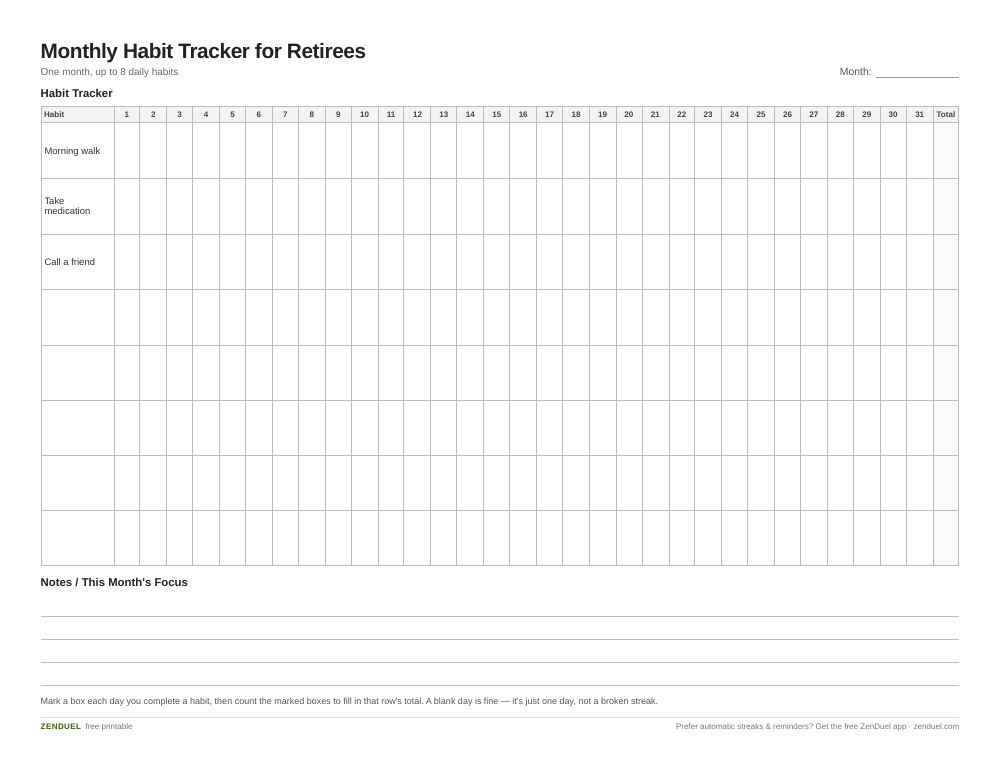
Our own template — free, no sign-up, no email required. An 8-habit, 31-day grid with a monthly total column per habit, plus a notes section for what helped or hindered a habit. US Letter (prints fine on A4). For Google Sheets, upload the .xlsx via File → Import.
Monthly Habit Tracker for Retirees (Excel / Google Sheets) Monthly Habit Tracker for Retirees (PDF)
Quick Answer
The simplest Excel habit tracker is one tab per month with habits listed down the left column, the days of the month across the top, and a checkmark or “X” in each cell when you complete that habit. Add a COUNTIF formula at the end of each row to total how many days you hit each habit, and use conditional formatting so completed cells turn a color automatically — no manual coloring required.
How to Set Up the Tracker
Start with the attached template or a blank sheet. In cell A1, put the month and year (e.g., “December 2026”). In row 3, label column A “Habit” and then number the days 1 through 31 across columns B onward, one column per day — this gives each day enough width to click into without squinting.
Down column A starting at row 4, list five to eight habits you actually want to build — fewer, well-chosen habits (like “Morning walk,” “Take medication,” “Call a friend,” “Stretch”) work far better than a long list that becomes a chore to fill in. Keep habit names short so they fit in a wide column A without wrapping awkwardly.
For marking days, two options work well. The simplest: just type an “X” or “1” into the cell for that day once you’ve done the habit — no formatting needed, and it works in every version of Excel. If you have Microsoft 365, you can instead select the day cells and choose Insert > Checkbox from the ribbon to drop in real clickable checkboxes that store TRUE/FALSE in the cell; they look a bit more like a paper tracker and are easy to tap on a touchscreen.
At the end of each habit’s row (say, column AG), add a formula like =COUNTIF(B4:AF4,”x”) if you’re typing X’s, or =COUNTIF(B4:AF4,TRUE) if you’re using checkboxes. This gives you a running total of how many days that month you kept up the habit, updating automatically as you fill in cells.
To make the sheet visually clear without any extra work, select your tracking grid (B4:AF11 or similar) and go to Home > Conditional Formatting > Highlight Cell Rules, then set cells containing “x” (or equal to TRUE) to fill green. Completed days light up on their own as you go, so you can see your month’s pattern at a glance.
Why Excel Works Well for a New Retirement Routine
Unlike phone habit apps, an Excel tracker doesn’t need a login, doesn’t send notifications you’d rather turn off, and can be printed in large type and kept on the fridge or next to a favorite chair — which matters if you’d rather check a box with a pen some days than type on a laptop. You can increase the font size for the whole sheet (Home > Font size) and widen the day columns so the grid is easy to read without reading glasses.
It’s also flexible as your routine changes. Retirement habits often shift with the seasons or with health — swap “Morning walk” for “Indoor stretching” in winter, or add a new row for a habit you’re building, like reading or a hobby, without redoing the whole sheet. Duplicate the tab at the start of each month (right-click the sheet tab > Move or Copy > Create a copy) so you keep a full history and can compare months side by side.
A separate small section below the grid — a few rows for “Notes” or “This month’s focus” — gives space to jot why a habit slipped or what helped it stick, which a pure checkbox grid can’t capture on its own.
Tips and Common Mistakes
Don’t start with ten or more habits. The most common reason trackers get abandoned is that filling them in starts to feel like homework; five or six habits that genuinely matter will get checked consistently, while a crowded sheet gets ignored after a week.
Keep the tracker somewhere it will actually get opened. If you track on a desktop computer but your routine happens in the morning away from it, print the current month’s grid and keep a pen nearby, then transfer checkmarks to the spreadsheet once a week if you want the automatic totals.
Avoid chasing a perfect streak. Missing a day and leaving that cell blank is fine — the COUNTIF total still shows your overall consistency for the month, and one gap doesn’t erase the pattern. Resist the urge to backfill days you didn’t actually do, since the point of the tracker is an honest picture, not a perfect-looking one.
If typing in a grid feels fiddly, the native checkbox option (Microsoft 365, via Insert > Checkbox) is worth using since it only takes a click or tap rather than typing a letter — helpful if you’re using a tablet or touchscreen laptop.
Explore more: more habit-building guides and trackers.
Excel Habit Tracker for Retirees FAQs
Do I need Microsoft 365 to use this tracker, or will an older Excel work?
An older, one-time-purchase version of Excel (like Excel 2019 or 2021) works fine — just type an X or 1 into each day’s cell instead of using the newer clickable checkbox feature, which is only available with a Microsoft 365 subscription.
What if I don’t have Excel at all?
The free file attached to this post includes a version that opens in Google Sheets as well, so you don’t need to buy or install anything to use the same layout.
How many habits should a retiree track at once?
Five to eight is a good range. Focus on habits tied to health and connection — movement, medication, hydration, and staying in touch with family or friends — rather than trying to overhaul your whole day at once.
Can I track more than one month on the same sheet?
Yes — copy the tab for each new month (right-click the sheet tab, choose Move or Copy, then Create a copy) so you keep a running history and can look back at how a habit has trended over several months.
Skip the Spreadsheet — Track It in ZenDuel
Habit streaks, mood tracking, and accountability duels in one free app — no template maintenance required. Get ZenDuel.
Want a calmer inbox? Subscribe to the free newsletter.
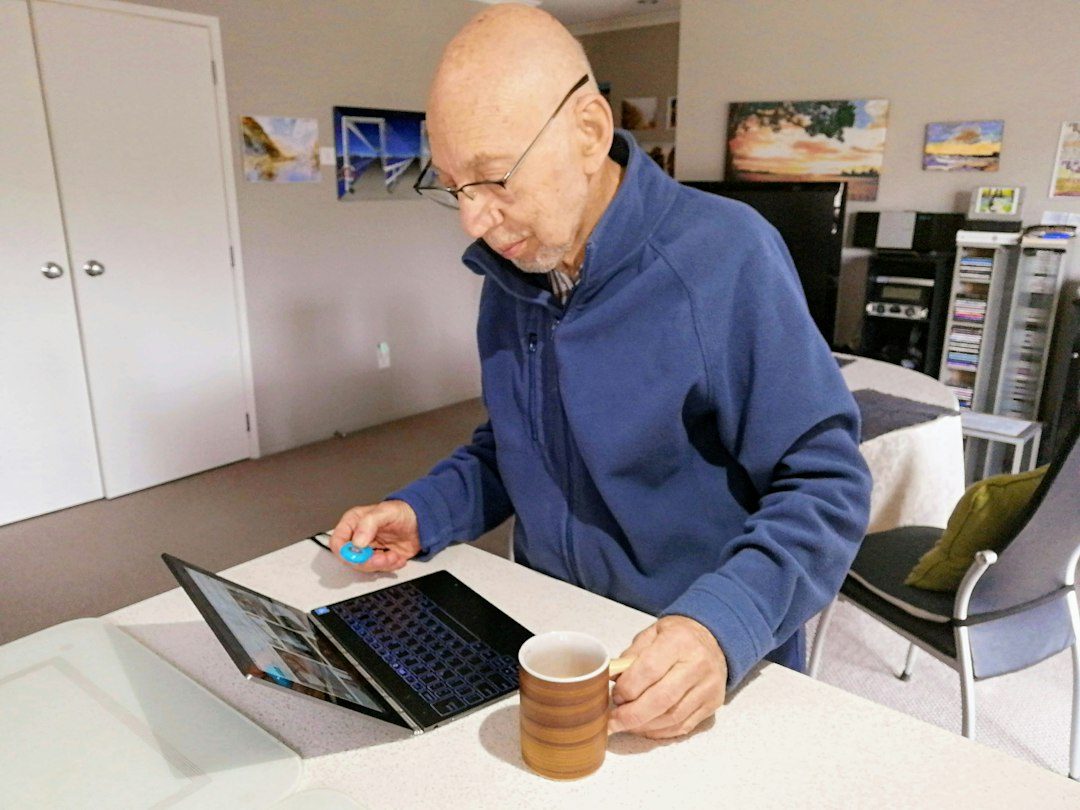
Photo by Vitaly Gariev on Unsplash.